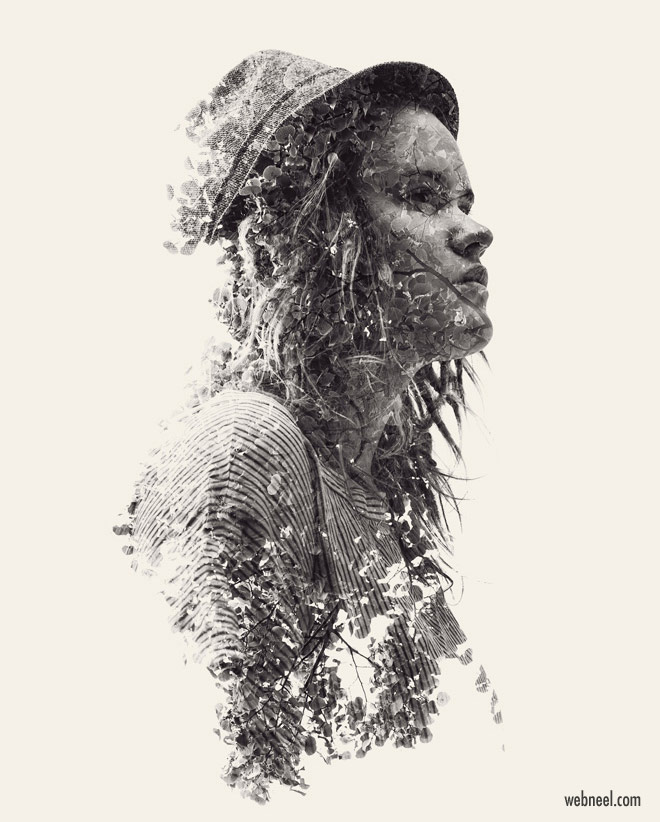
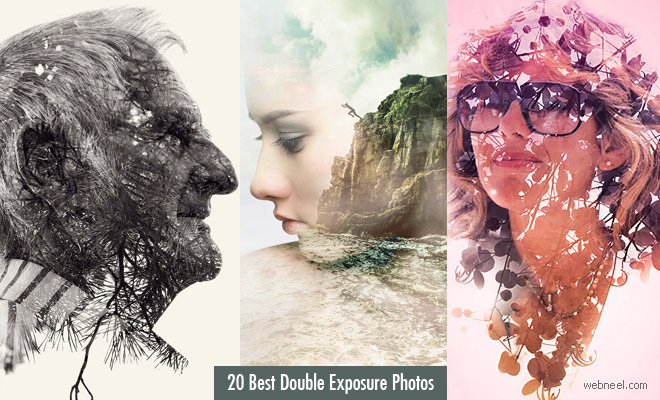
20 Stunning Double Exposure Effect Photos from Top Designers
In Adobe Photoshop, you can use the built-in elements to create a ready-made double exposure effect using Envato Elements, or you can choose the more tedious method of doing it from scratch, which will give you firsthand experience of how this blending and merging take place. Once you have made up your mind, it's time to plan your actions.
Double Exposure Effect
1.Choose a base photo which doesn't have many extra fittings like shrubs, trees or buildings and let the background be clean.
2. Adjust the shades: Crop the image and if required make the picture brighter and additional contrast.
3. If you are using a portrait, you can clean the face using the spot healing brush to remove uneven skin tones or even blemishes.
4. Remove the background from the original image using the magic wand tool and use the refine edge tool to smooth out the edges.
5. Choose the second image with a theme of your choice like seascape, landscape historic buildings and more.
6. Place the first image on the second image by using the new layer mask.
7. Use the Add vector mask in the layers panel to hide unnecessary things in the second image and once you are satisfied with the outcome, you have achieved your double exposure effect.
Android APP: Double Exposure Blending APP
IOS APP : Double Exposure by Fuzion APP
Watch the videos here:
Double exposure effect cityscape photography

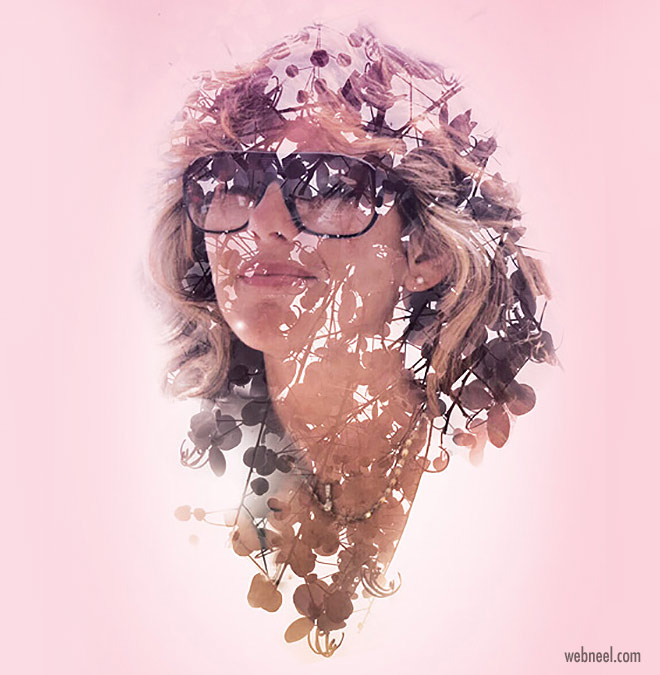


Double exposure effect photo by dean nguyen